
11th Standard Syllabus & Materials
11th Standard
TN 11th English Supplementary - 3 - The First Patient (Play) Sample Question Papers Study Material - QB365 Set A
NEW11th Standard
TN 11th English Prose - 3 - Forgetting Sample Question Papers Study Material - QB365 Set A
NEW11th Standard
TN 11th English Prose - 2 - The Queen of Boxing Sample Question Papers Study Material - QB365 Set A
NEW11th Standard
TN 11th English Poem - 1 - Once Upon A Time Sample Question Papers Study Material - QB365 Set A
NEW11th Standard
TN 11th English Prose - 1 - The Portrait of a Lady Sample Question Papers Study Material - QB365 Set A
NEW11th Standard
TN 11th Computer Applications Tamil Computing Sample Question Papers Study Material - QB365 Set A

Published on: 24/08/2026
Download Tamil Nadu 11th Standard Computer Applications question papers, model tests, one-mark questions, important questions, and public exam papers in PDF format. Free study materials and answer keys for TN State Board students.
Questions + Answers key
Take MCQ Computer Applications Test
1.
What is the shortcut key for Undo?
Ctrl +E
Ctrl + U
Ctrl + Z
Ctrl + n
2.
Which is displayed at the top part of the window?
Menu bar
Tool bar
Title bar
Format bar
3.
In presentation tools, the entry effect as one slide replaces another slide in a slideshow. Identity the option that suits after reading the statement.
Animation
Slide Transition
Custom animation
Rehearse Timing
4.
Identify the extension of the Impress presentation.
.odp
.ppt
.odb
ood
5.
Which is the shortcut key to view the slide show?
F6
F9
F5
F10
6.
Which of the following symbol is used to make a cell address as an absolute reference?
+
%
&
$
7.
A formula in calc may begin with________.
=
+
-
All the above
8.
Which key is used to move the cell pointer in the forward direction within the worksheet?
Enter
Tab
Shift + Tab
Delete
9.
Which key used to move to the beginning of document?
Home
Shift + Home
Ctrl + Home
Alt+ Horne
10.
Which is the opening screen of OpenOffice?
Star desktop
Star Center
Star Screen
Star window
11.
What is Master Slide?
12.
What do you understand by the slide layout?
13.
What is the difference between a slide and a slide show?
14.
Differentiate between Copy - Paste and Cut-Paste
15.
16.
How do you merge cells in a table?
17.
How do you insert pictures in to your document?
18.
How will you create a new presentation?
19.
Write the steps to Find and Replace a word with another word in OpenOffice Writer?
20.
Explain how a presentation can help a sales person to promote his/her products.
21.
22.
Explain about changing the column width in Calc.
23.
What are the different methods to change margin in Writer?
24.
Write the steps to change the line spacing of text.
25.
How do you insert rows and columns?
26.
What are the different types of orientation?
27.
How are transition effects helpful in creating an effective presentation in Impress?
28.
How many types of views are provided by Impress to its users?
29.
In cell A1=34 A2=65 A3=89 write the formula to find the average.
30.
Write any three formatting options.
1.
(c)
Ctrl + Z
2.
(c)
Title bar
3.
(b)
Slide Transition
4.
(a)
.odp
5.
(c)
F5
6.
(d)
$
7.
(d)
All the above
8.
(b)
Tab
9.
(c)
Ctrl + Home
10.
(b)
Star Center
11.
A master slide is a slide that is used as the starting point for other slides. It controls the basic formatting of all slides. A Slide show can have more than one master slide.
12.
Slide layouts are pre-packaged layouts which contain formatting, positioning, and placeholders for all of the content that appears on a slide. Placeholders are the containers in layouts that hold such content as text, tables, charts, SmartArt graphics, movies, sounds, pictures, and clip art.
13.
| Slide | Slide Show |
| Slide means a single slide that contains different elements like text, tables, charts, clip-art etc. | A slide show is a presentation of a series of slides on a projection screen typically in a prearranged sequence. The changes between slide may be automatic or manually controlled by a presenter or the viewer. |
14.
| Copy -Paste | Cut-Paste |
| Select the cell or group of cells you want to copy, then using Select Edit \(\rightarrow\) Copy or Click "Copy" icon from the standard toolbar or Press Ctrl + C | Select the cell or group of cells you want to cut, then using Edit \(\rightarrow\) Cut or Click “Cut" icon from the standard toolbar or Press Ctrl + X |
| Copy leaves the cell information in its original location and makes copy of the cell information when pasted it. | But in Moving it removes the information and pastes it in another location. |
| Move the cell pointer to the cell in which you want to paste. Edit \(\rightarrow\) Paste or Click "Paste" icon or Press Ctrl + V | Move the cell pointer to the cell in which you want to paste. Edit \(\rightarrow\) Paste or Click "Paste" icon or Press Ctrl + V |
15.
16.
To merge a group of cells:
(i) Select the cells to merge.
(ii) Right click and choose Cell ➝ Merge or choose Table ➝ Merge Cells from the menu bar.
17.
Openoffice writer has the ability to insert and edit images in a more simply way.
(i) Place the insertion pointer where you want the image to appear
(ii) Select Insert \(\rightarrow\) Picture \(\rightarrow\) From file
(iii) The insert picture dialog box appears where the picture gallery opens from which the desired picture can be selected.
(iv) If the picture is not in the gallery, then browse the pictures from the folder, choose the desired picture.
(v) Click on the Open button
(vi) The selected picture is inserted into the document.
18.
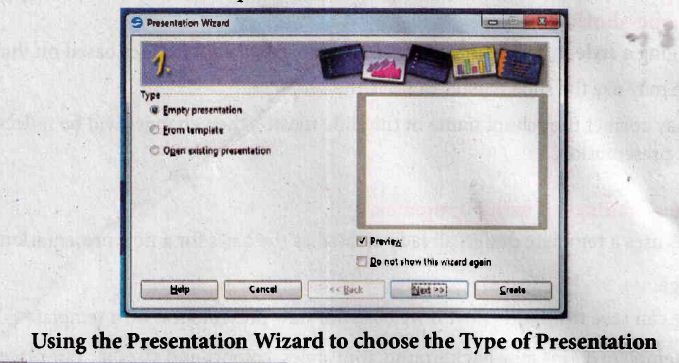
There are three methods to create a new presentation
i. By selecting Empty presentation
.
ii. By Selecting From template
iii. By selecting open existing presentation.
i) Using Empty Presentation:
1. Select Empty presentation under llpe.
2. Click Next
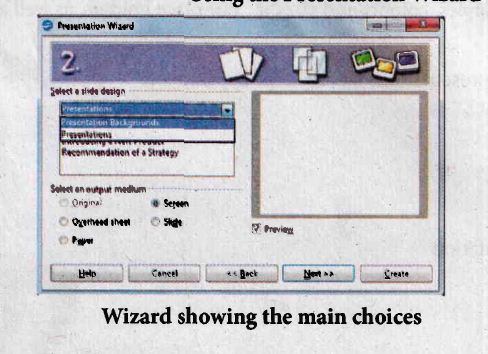
3. Choose a design under Select a Slide Design. The Slide design has 2 main choices:
i. Presentation Backgrounds
ii. Presentation
4. Each one has a list of choices for slide design. If user want to use one of these other than the <original>
5. <original>
i. Introducing a new product.
ii. Recommendation of a strategy.
6. Click to see a preview ofthe window.
7. Select how the presentation will be used under Select an output medium.
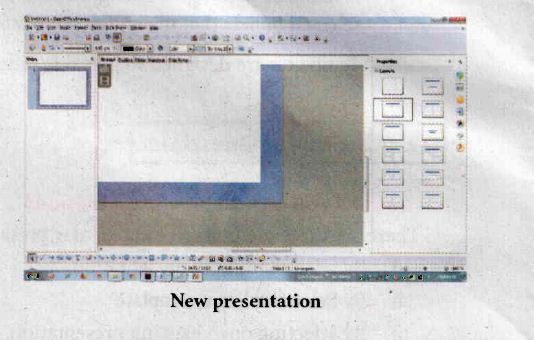
8. Click next. User can choose the desired slide transition from the effect drop down box. Select the desired speed for the transition between the slides in the presentation from the Speed drop down box. Click Create. A new presentation is created.
ii) Using Template:
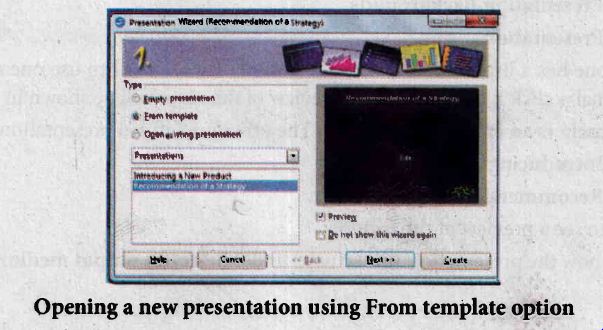
1. If user choose the option From Template, it uses a template design.
2. The wizard changes to show a list of available templates.
3. Choose the template that user want.
4. Introducing a New Product and Recommendation of a strategy are prepacked presentation template.
iii) Using open odsting presentation:
1. Choose the option open existing presentation, it helps ln continuing the work on a previously created presentation.
2. User has to open a presentation already prepared by clicking open button.
3. The wizard changes to show a list of existing presentation from which user can choose to one.
19.
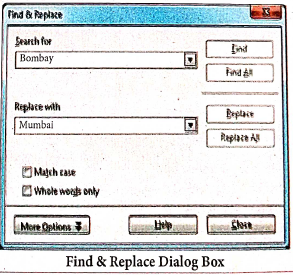
OpenOffice Writer has a Find and Replace feature that helps to locate for a text inside a document and replace it with another word.
Click Edit Find & Replace (or) Ctrl + F
The Find & Replace dialog box appears as shown.
Steps to Find & Replace a text :
(i) Type the text you want to find in the Search forbox For Example : To search a word "Bombay" in a document and replace with "Mumbai", enter the word "Bombay" in the Search for box.
(ii) Enter the word " Mumbai" in the Replace with box and Click Find button, to start the search, the found word is highlighted and the first occurrence of "Bombay" is highlighted.
(iii) To replace text, click Replace button.
The highlighted word is replaced with the word given in the Replace with box.
(iv) Click Find All Writer selects all instances of the search text in the document.
All occurrences of Bombay are highlighted.
(v) Click Replace All button, Writer replaces all matches.
This will replace all occurrences of "Bombay" with "Mumbai".
(vi) Enable Match caseto perform the search case sensitively so that uppercase and lower cases are distinguished separately.
(vii) Enable Whole Words only to make the search more specific to words. For example, if you search for the word "Image", the command will only find Image" not "Imaging" "Images" etc.
20.
Presentation is helpful for a sales person to promote his/her products effectively.
(i) Presentation will give visual video, pictures to understand a goodness of the product.
(ii) By using presentation, sales person can make audience to understand easier and he can get more response from the people.
(iii) Presentation help sales person to present prospect challenges easier.
(iv) Sales person can explain with physical demonstration by shocking animations. It helps to increase the sales.
21.
22.
Resize the width of a column using the mouse :
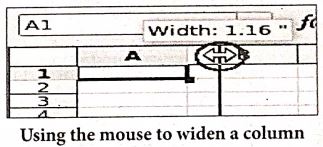
Use the right hand border to increase or decrease the width of a column.
(i) Position the cursor on the right hand border of the column letter box, until you see a double headed arrow.
(ii) Hold down the left hand mouse button and drag the border to the left or right to make the column narrower or wider as required.
As you carry out this action, the width of the column displays.
Resize one or more columns using Format :
(i) Select the column(s) whose width you wish to change
(ii) Select Format \(\rightarrow\) Column \(\rightarrow\) Width
(ii) The Column Width dialog displays
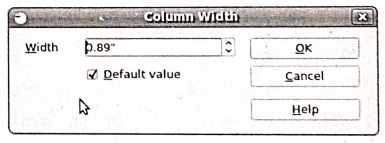
(iv) Enter a value in the Width window or check the Default value check box to select the default column width.
(v) Click OK.
The selected columns display with the new width.
23.
Page margins are the white space around the top, bottom, left and right of your document.
Changing or setting page margins in openoffice writer can be done in two ways:
(i) Using the Rulers - quick and easy, but does not have precise values.
(ii) Using the Page Style dialog box - can specify precise values for the margins.
Changing Page Margins using Ruler:
(i) The shaded sections of the rulers are the margins.
(ii) Hold the mouse pointer over the line between the gray and white sections.
(iii) The mouse pointer turns into a double-headed arrow.
(iv) Hold down the left mouse button and drag the mouse to move the margin and release it at the required point.
(v) The new margin is set.
Using the Page Style Dialog Box:
To change margins using the Page Style dialog box
(i) Right-click anywhere on the page and select Page from the popup menu or select page tab of page style dialog box.
(ii) In the Margins boxes, specify the values for left, right, top and bottom margins.
(iii) Click on OK button.
24.
(i) Rightclick \(\rightarrow\)line spacing, select the type single, 1.5 or double.
(ii) Select the entire document by Edit\(\rightarrow\) Select All
(iii) Format- paragraph
(iv) The paragraph dialog box appears, click Indents & Spacing tab
(v) In the line spacing option, select the type and click OK button.
25.
To insert rows or columns inside a table:
(i) Place the insertion pointer in the row or in the column where you would like to add new rows or columns and right-click.
(ii) Choose Row \(\rightarrow\) Insert - to insert a new row or Column \(\rightarrow\) Insert - to insert a new column. A dialog box will appear, from which you can select the number of rows or columns to insert. You can also set the position of the new rows or columns to Before or After.
26.
There are two different orientation :
(i) Landscape: The width of the document is more than the height. This is best suited for displaying professional photos, invitatíons, albums, tables etc.
(ii) Portrait :This is the most common and default orientation. Here, the height of the document is more than the width. Normally books, newspapers will be displayed in this format.
27.
Transition effects are special effects that play when the user view a presentation in slide show. In other words,it appear after vanishing of the current slide and before the appearance of the next slide. These effects are used to enhance the initial appearance of the slides.
28.
There are 5 types of views are provided by Impress.
They are
(i) Normal view: Normal view is the main view for creating individual slides.
(ii) Outline view : Outline view shows topic titles, bulleted lists and numbered lists for each slide in outline format.
(iii) Notes view: Notes view lets you add notes to each slide that are not seen when the presentation is shown.
(iv) Slide Sorter view : Slide Sorter view shows a thumbnail of each slide in order.
(v) Handout view : Handout view lets you print your slides for a handout.
29.
.=(A1 + A2 + A3)/3 (or) = Average (A1 : A3) = 62.7%
30.
| Formatting Option | Keyboard Shortcut | Description |
| Bold | Ctrl + B | Used to make the data as Bold |
| Italic | Ctrl + I | Used to italicize data |
| Underline | Ctrl + U | Used to underline the data |

11th Standard Syllabus & Materials
11th Standard
TN 11th Computer Applications Computer Ethics and Cyber Security Sample Question Papers Study Material - QB365 Set A
NEW11th Standard
TN 11th Computer Applications JavaScript Functions Sample Question Papers Study Material - QB365 Set A
NEW11th Standard
TN 11th Computer Applications Control Structure in JavaScript Sample Question Papers Study Material - QB365 Set A
NEW11th Standard
TN 11th Computer Applications Introduction to JavaScript Sample Question Papers Study Material - QB365 Set A



Tamilnadu Stateboard 11th Standard Subjects

Maths

Commerce

Economics

Biology

Business Maths and Statistics

Accountancy

Computer Science

Physics

Chemistry
Maths
Biology
Economics
Physics
Chemistry

History
Business Maths and Statistics

Computer Science
Accountancy
Computer Applications
History
Computer Technology
Commerce
Computer Applications
Computer Technology

Tamil

English

French
Tamilnadu Stateboard Standards


